

A record of every tree in a collection, made where each one stands.
DendroLog is an app for iPhone and Android, and a website, for people who keep trees seriously. Stand at a tree and the app records where it is, photographs it and files it under its proper name. At a desk, the website shows the whole collection on a map, ready to search, correct, print or export.
- Within 10 m
- No signal needed
- Full resolution
- Private
It began with one collection
DendroLog was built for a private collection of several hundred trees, many of them rare oaks, whose records had lived for decades in a planting plan and a keeper’s memory. It was designed around walking that collection row by row.
On the phone, standing at the tree
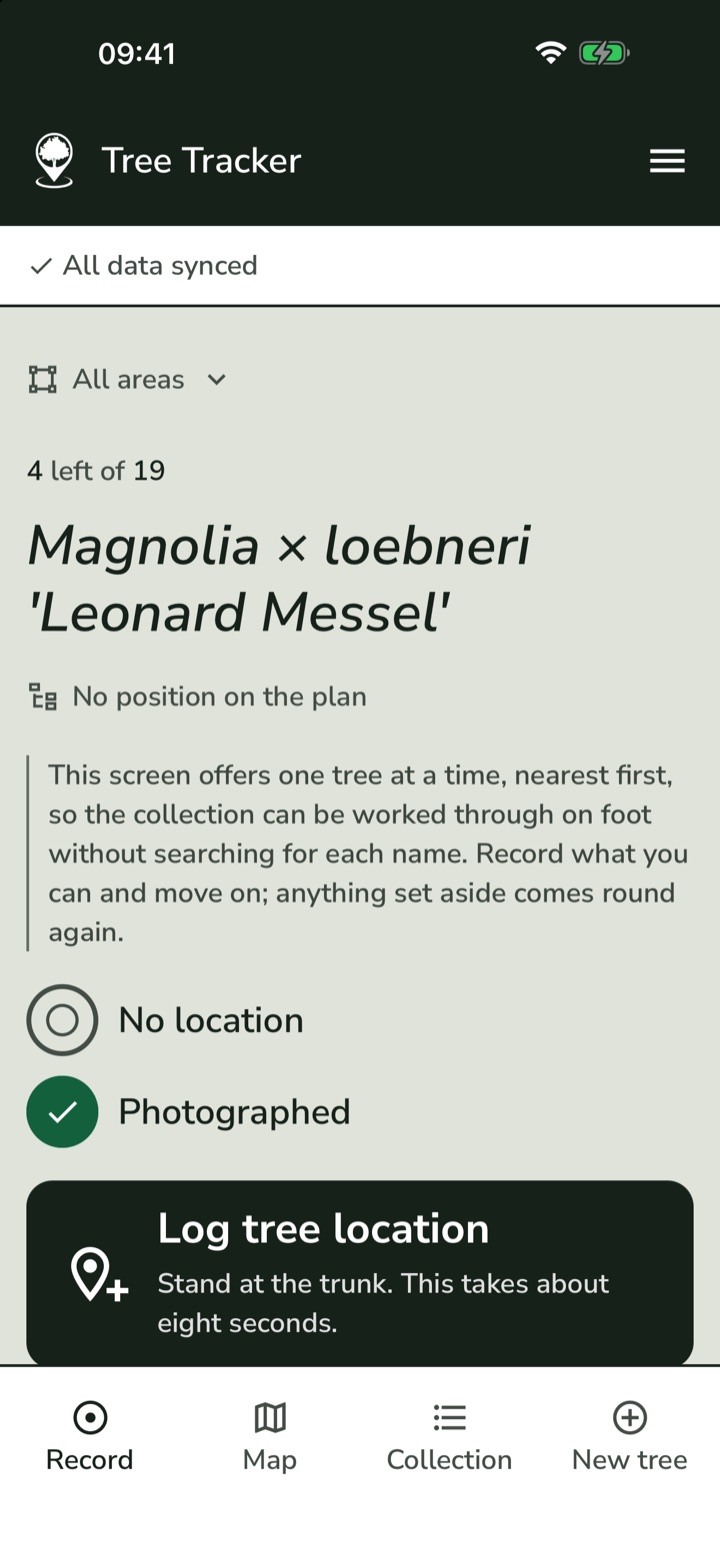
The app is built around one job: walking the collection and recording each tree where it grows. Everything is large, and every screen says in words what its buttons do.
Walking the collection
- The next tree, offered for you
- Once some trees have locations, the app offers the nearest one still to be done. For a collection brought in from a planting plan, the first pass follows the plan’s rows, so you walk them as they were planted.
- One area at a time
- Work through a single area, or just the trees not yet filed in any. The screen counts how many are left of how many.
- Choose a different tree, or set one aside
- Pick any tree by name, or put one aside for this visit and come back to it. It is offered again next time.
Recording a tree
- A location you can trust
- Stand at the trunk and hold still. Within 10 m is saved as good. Up to 40 m is saved but marked approximate, to improve on a later visit. Anything worse is refused, with advice to step into the open.
- Moving a location
- Standing at a tree already recorded, the app says how far you are from its saved position and offers to move it to where you stand.
- Photographs
- Take one with the camera or choose one already on the phone, and crop it if you want to. Say what it shows (whole tree, leaf, bark, acorn or flower), or leave that for later.
- Filed automatically
- A tree not yet in any area is filed into the one it stands in, when it is recorded with a good location.
Looking things up
- The map
- Satellite or plain map. Each tree is drawn as a crown about 8 m across, measured on the ground rather than on the screen, so a plantation looks like woodland from above and separates into single trees as you zoom in. Tap one to open it.
- The collection list
- Search by name, narrow to one area, or show only the trees still needing a photograph or a location. Each row says what it is missing.
- A page for every tree
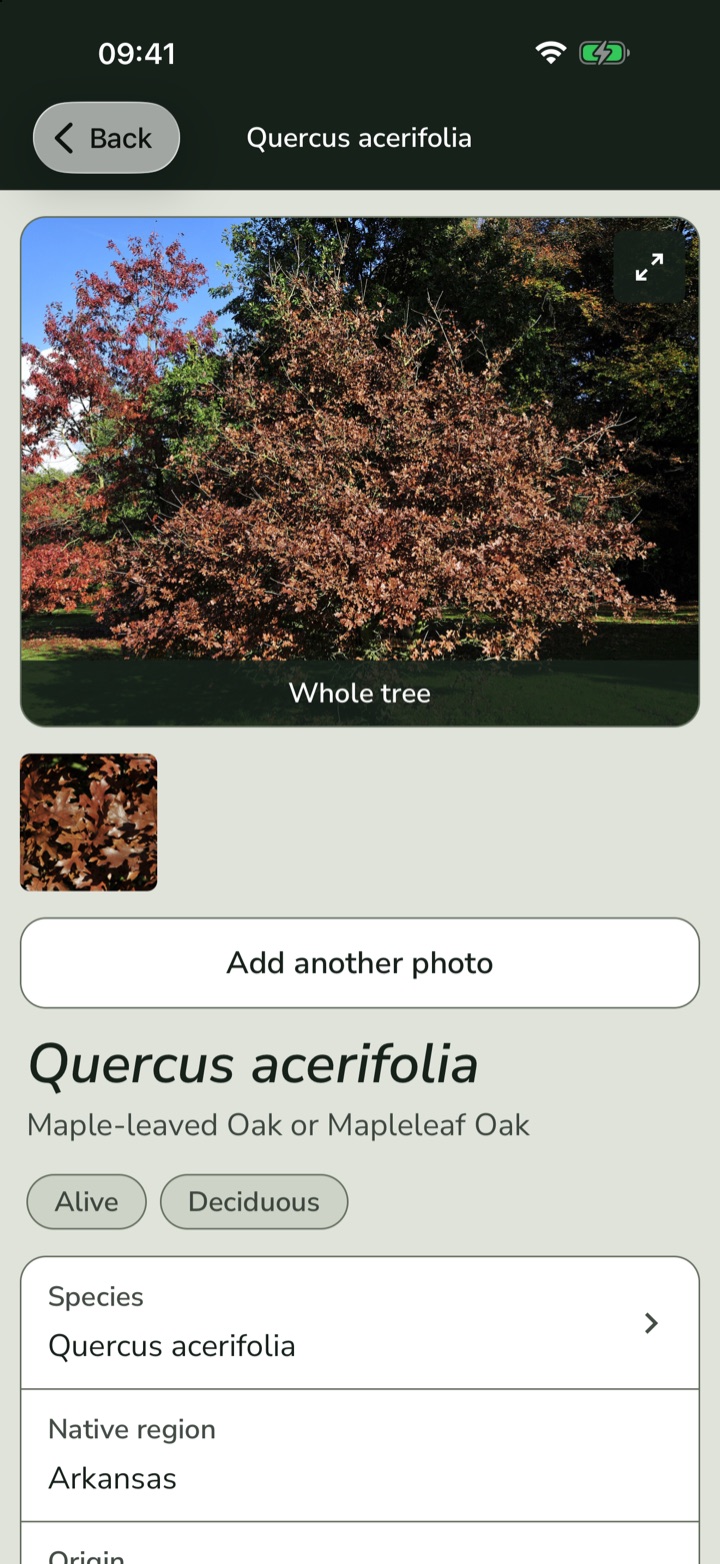
- Its photographs, shown large, with its name, origin and planting date, where it stands, notes and history. The name, area, condition and notes can be changed on the spot.
Keeping the record
- Adding a new tree
- Choose its name from Kew’s list of 115,164 trees, shrubs and other woody plants, alongside the 544 oaks of the original list with their common names, or add a name of your own. Give it an area, a location and photographs in the same screen.
- History
- Dated entries for acquired, sown, potted, planted, observed, died and removed, each with notes and photographs. Tick “I only know the year” when that is all anyone remembers.
- Condition
- Growing normally, died where it stands, or taken out of the ground. A dead tree keeps its record.
- Drawing areas by walking
- Walk to each corner of a paddock and mark it where you stand. A corner the phone cannot place within 25 m is refused, because one bad corner distorts the whole shape.
At the desk, with the whole collection in view
The website is the same collection on a large screen: better for looking across everything at once, correcting records with a keyboard, and producing lists on paper.
The map
- Satellite or street map
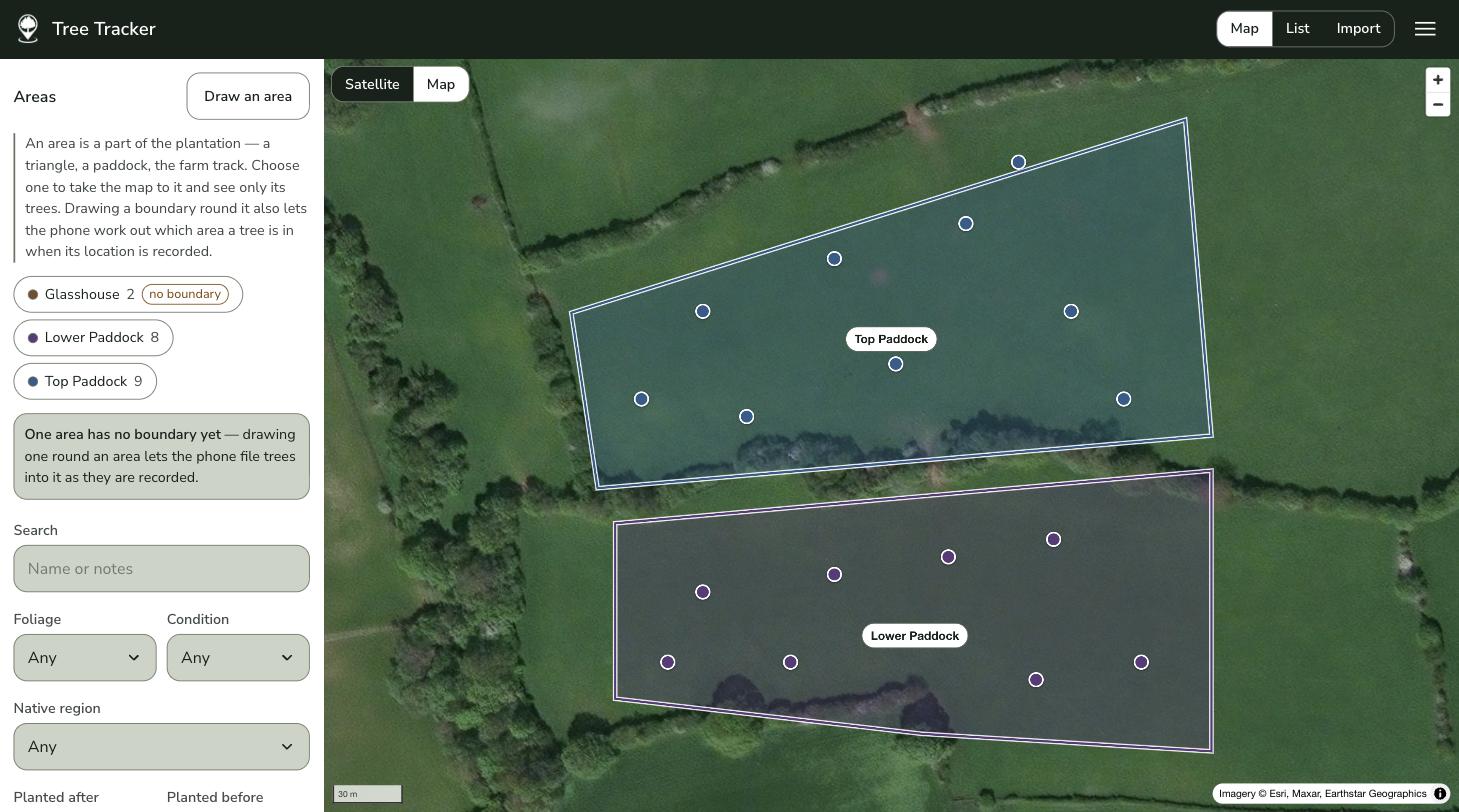
- Every located tree on one map, with your areas outlined and named. Trees that have died or been removed are shown faded, so they are not mistaken for living ones.
- Areas
- Choose an area and the map goes to it, listing the trees inside. Draw or redraw its boundary on the map, and any tree inside it not yet in an area is filed there.
- Placing a tree by hand
- Where the phone could not get a good location, click the map where the tree stands. It is marked as placed by hand, so nobody mistakes it for a reading.
The list
- Search and filters
- Search names and notes. Narrow by evergreen or deciduous, by condition, by native region, by planting date, or to the trees still missing a photograph or a location.
- Columns you choose
- Show only the columns this job needs: accession, common name, native region, area, foliage, planting date and location. Sort by name, accession, common name or planting date.
Correcting and sorting
- Edit a whole record at once
- Every field of a tree in one form, including the ones the phone does not edit, saved only when you press Save, so a half-typed name never reaches the map.
- Photographs at full size
- See every photograph of a tree large, and say what each one shows. A season’s pictures can be sorted in one sitting.
Paper and spreadsheets
- Print a planting list
- Prints the list exactly as it is filtered, with the columns you chose and a heading saying what it shows. Carry it round the collection.
- Export a spreadsheet
- The whole collection, or just what is filtered, including coordinates and a link to every photograph.
- Keep it on the dock
- Install the website as an app on a computer or iPad, and it opens on your collection in its own window.
In both places
One collection, kept in step
A change made on the phone appears on the website, and the other way round. While anything is waiting to be sent, the phone says how many changes are waiting, and warns you before signing out would lose them.
Names that are checked
On the phone, Latin names are chosen from a list rather than typed afresh each time: 115,164 trees, shrubs and other woody plants from the World Checklist of Vascular Plants, Royal Botanic Gardens, Kew, alongside the 544 oaks of the original list with their common names. An older name finds the current one. A name the list does not have, such as a cultivar, is typed once with its common name and native region, then chosen like any other. A correction made once applies to every tree using that name.
Made to be read outdoors
On the phone, no text is smaller than 17 point and nothing to tap is smaller than a fingertip. Dark ink on a pale ground, checked for contrast in bright daylight. Short guidance notes explain each control, and can be turned off once they are no longer needed.
Accession numbers, if you use them
Hidden by default for collections that do not number their plants, and shown on every tree, list and printout with one setting.
Existing records brought in
A spreadsheet, a planting plan or a card index can be brought in when a collection is set up. The names are checked with you before anything is saved.
Your records, in your hands
The whole collection can be exported at any time. Nothing about it is locked in.
What it will not do
Worth knowing before you ask for a copy.
- Identify a plant.
It records the name you give it. It does not guess one from a photograph.
- Show your collection to anyone.
There is no public map and no sharing. The database refuses every account but yours, and that is not a setting that could be switched on by mistake. The one exception is deliberate: each photograph has a private link, included in an exported spreadsheet, which opens that photograph for whoever you give it to.
- Add or delete photographs on the website.
On purpose. A photograph is taken standing at the tree, so it is added and removed on the phone, where you can see what you are looking at.
- Follow you about.
It reads your location only while the app is open on the screen, never in the background.
- Come from an app store, yet.
The same app runs on iPhone, iPad and Android, but neither the App Store nor the Play Store lists it yet. For now each copy is installed from a link we send. An iPhone or iPad has to be registered with us once before its link will work, and its copy is renewed once a year. The website works in any browser, on any computer.
- Let two people share one collection.
Each collection belongs to one account. Shared access is not built yet.
Getting a copy
Other collections are now being set up by hand, one at a time, with their existing records brought across.
Ask about a copy for your collection